
Implementing an arXiv MCP Server with Quarkus in Java
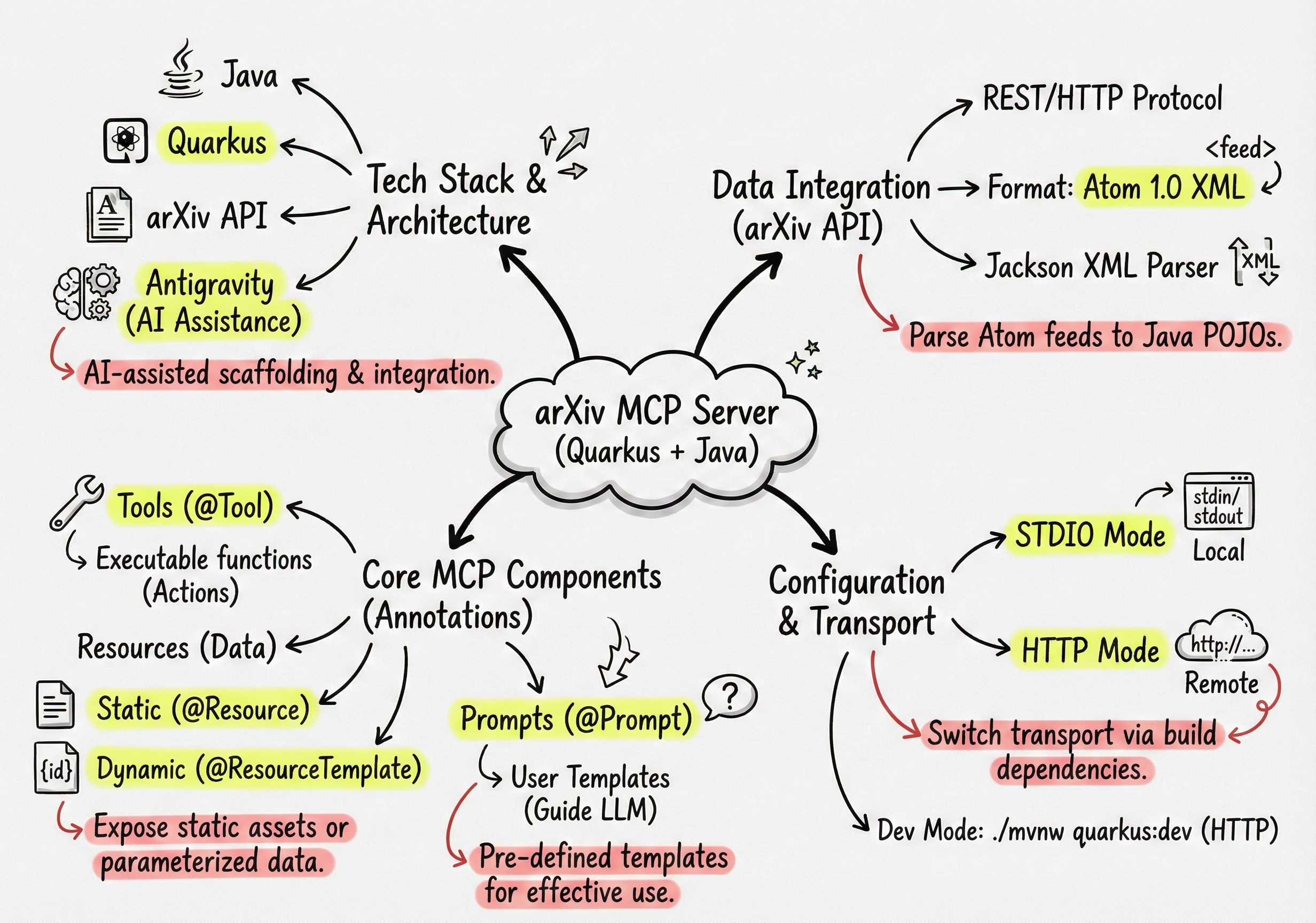
For my recent presentation at SnowCamp on AI Standards & Protocols for AI Agents, I decided to build an MCP server to access the arXiv research paper website where pre-print versions are published and shared with the community.
My goal was to shed light on some lesser-known aspects of the Model Context Protocol:
- 🛠️ While the majority of MCP servers use the tools feature to expose actions that LLMs can request to call,
- 📄 An MCP server can also share resources (and resource templates), exposing various static assets the AI app might be interested in,
- ✏️ And prompts (and prompt templates) that users can access and reuse to utilize the MCP server effectively.
For the impatient, feel free to go straight to the GitHub repository for the full source code. The README.md file gives instructions on how to build, run, configure, and use the server.
The Combo: Antigravity + Quarkus + Java
To implement this server, I selected the Quarkus framework (in Java) and its extensive MCP support (documented here).
I enlisted Antigravity to help me in this adventure. I pointed my agentic IDE to the arXiv API User’s Manual to draft and scaffold my project, and iteratively collaborated with it to expand the coverage of the arXiv API. It was a pretty productive session! I highly recommend checking out Antigravity!
A Look at the arXiv API
PDFs are accessible at a URL of the form https://arxiv.org/pdf/{paperID}.
The arXiv API offers programmatic access to e-prints via HTTP requests with parameters for searches, specific paper IDs, pagination, and sorting. Users can build complex queries using boolean operators, phrases, and grouping.
So for searching, I’ve created a REST client that I used in my MCP server implementation:
@RegisterRestClient(baseUri = "https://export.arxiv.org/api")
@RegisterProvider(ArxivResponseFilter.class)
public interface ArxivClient {

    @GET
    @Path("/query")
    @Produces("*/*")
    String search(
        @QueryParam("search_query") String searchQuery,
        @QueryParam("id_list") String idList,
        @QueryParam("start") int start,
        @QueryParam("max_results") int maxResults,
        @QueryParam("sortBy") String sortBy,
        @QueryParam("sortOrder") String sortOrder);
}
Unusually, the arXiv API returns results in Atom 1.0 XML format (rather than the typical JSON), providing detailed metadata for both the query and individual articles, including titles, abstracts, authors, categories, and links.
In order to parse the Atom format and map the feeds to Java classes, I simply went with Jackson’s XML parser (perhaps I could have used the venerable Rome project).
Here’s one of the entities used in the ATOM domain model:
@JsonIgnoreProperties(ignoreUnknown = true)
public class Entry {
    @JacksonXmlProperty(namespace = "http://www.w3.org/2005/Atom")
    public String id;

    @JacksonXmlProperty(namespace = "http://www.w3.org/2005/Atom")
    public String published;

    @JacksonXmlProperty(namespace = "http://www.w3.org/2005/Atom")
    public String title;

    @JacksonXmlProperty(namespace = "http://www.w3.org/2005/Atom")
    public String summary;

    @JacksonXmlElementWrapper(useWrapping = false)
    @JacksonXmlProperty(localName = "author",
                        namespace = "http://www.w3.org/2005/Atom")
    public List<Author> authors;

    // ...
}
(It is somewhat ironic to use the @JsonIgnoreProperties annotation when parsing XML!)
Let’s Start with Tools
What I like about the Quarkus MCP support is that to turn a Quarkus app into an MCP server, you just need a few Java annotations, and everything is handled for you!
In my ArxivMcpServer, I injected my ArxivClient REST client:
public class ArxivMcpServer {
    @Inject
    @RestClient
    ArxivClient arxivClient;
    // ...
}
Then to define a tool, I used the @Tool annotation:
@Tool(
    description = "Search for papers on arXiv",
    name = "search_papers")
public Feed searchPapers(String query, int maxResults,
                         SortBy sortBy, SortOrder sortOrder) {
    return performSearch(
        query, null, 0, maxResults == 0 ? 5 : maxResults,
        sortBy == null ? null : sortBy.name(),
        sortOrder == null ? null : sortOrder.name());
}
I could have added @ToolArg annotations on the parameters of this method to give the LLM more context on their role, but the parameter names were self-explanatory.
Expose the Taxonomy as a Resource
For well-known static assets like the taxonomy of all the domain categories of research papers, you can expose an MCP Resource:
@Resource(
    uri = "arxiv://taxonomy",
    description = "List of arXiv categories and their codes",
    mimeType = "text/markdown")
public TextResourceContents getTaxonomy() {
    return TextResourceContents.create("arxiv://taxonomy",
        """
        # arXiv Category Taxonomy

        ## Computer Science (cs)
        *   **Artificial Intelligence** (cs.AI)
        *   **Computation and Language** (cs.CL)
        *   **Computer Vision** (cs.CV)
        *   **Machine Learning** (cs.LG)
        *   **Robotics** (cs.RO)
        *   **Software Engineering** (cs.SE)
        *   ... and many more.

        ## Physics
        ...
        """);
}
Again, an annotation, @Resource, is all that’s needed to define a resource.
We give it a URI, a description, and a MIME type.
Resources are either text content or binary content.
So depending on the type of your resource,
your methods can return either TextResourceContents or BlobResourceContents.
Here, for the taxonomy, it’s just Markdown text.
Since there is only one known taxonomy, the resource name is static and explicit. However, you can also take advantage of MCP Resource Templates which support parameterization.
This is the case, for example, when accessing metadata for each paper. So I created a resource template as follows:
@ResourceTemplate(
    uriTemplate = "arxiv://papers/{id}/metadata",
    description = "The full metadata of the arXiv paper",
    mimeType = "application/json")
public TextResourceContents getMetadata(@ResourceTemplateArg String id) {
    Feed feed = performSearch(null, id, 0, 1, null, null);
    if (feed.entries != null && !feed.entries.isEmpty()) {
        try {
            return TextResourceContents.create(
                "arxiv://papers/" + id + "/metadata",
                jsonMapper.writeValueAsString(feed.entries.get(0)));
        } catch (JsonProcessingException e) {
            throw new RuntimeException(
                "Failed to serialize paper metadata", e);
        }
    }
    throw new RuntimeException("Paper not found: " + id);
}
I used an @ResourceTemplate annotation, and the uri parameter is replaced with uriTemplate which contains a placeholder for the ID of the paper.
That paper ID is actually passed as a parameter to the method, and this parameter is annotated with a @ResourceTemplateArg annotation.
Again for templates, it’s like for plain resources, you either return TextResourceContents or BlobResourceContents for binary content.
Prepare Reusable Prompts for the User
MCP Prompts are prompts for the user to use to make the best possible use of the MCP server.
Here’s a method returning a prompt to get summaries of papers:
@Prompt(
    name = "summarize_paper",
    description = "Summarize the given paper")
public PromptMessage summarizePaper(String id) {
    Feed feed = performSearch(null, id, 0, 1, null, null);
    if (feed.entries != null && !feed.entries.isEmpty()) {
        String summary = feed.entries.get(0).summary;
        return PromptMessage.withUserRole(
            String.format("""
                Please summarize this paper abstract (ID: %s):

                %s""", id, summary));
    }
    return PromptMessage.withUserRole("Error: Paper not found");
}
The method returns a PromptMessage with the user role, as it is a prompt for the user.
This is a simple prompt that summarizes the paper’s abstract (a summary of a summary). Abstracts can be overly scientific and hard for non-experts to decipher. However, this simple prompt usually yields easy-to-understand summaries. Of course, you might instead retrieve the whole paper and create a much more elaborate summary that analyzes the whole content instead of just the abstract.
Perhaps more interesting is the prompt I defined to help craft search queries:
@Prompt(
    name = "construct_search_query",
    description = "Helper to construct an arXiv search query")
public PromptMessage constructSearchQuery(
    @PromptArg(description = "Topic or keywords") String topic,
    @PromptArg(description = "Author name") String author,
    @PromptArg(description = "Category code (e.g. cs.AI)") String category,
    @PromptArg(description = "Year (e.g. 2024)") String year) {
        // ...
}
I’m just showing the signature here, but notice that this time I used @PromptArg annotations to give more details about each argument.
Configuration in Gemini CLI
For using this MCP server in your favorite MCP client, you’ll have to configure it to point at this Quarkus application. MCP servers can be either local STDIO servers that run along your application (they are actually launched by your client, and use standard in and out for communication), or they can be remote by using a Streamable HTTP transport mechanism (the server could be running locally as well, or be deployed in the cloud).
One cool thing with the Quarkus MCP extension is that choosing between STDIO and Streamable HTTP is just a build dependency change.
And if you want, you can build your MCP server to support both transports by using both dependencies in your build.
Here, for example with Maven’s pom.xml:
<dependency>
    <groupId>io.quarkiverse.mcp</groupId>
    <artifactId>quarkus-mcp-server-http</artifactId>
    <version>1.8.1</version>
</dependency>
<dependency>
    <groupId>io.quarkiverse.mcp</groupId>
    <artifactId>quarkus-mcp-server-stdio</artifactId>
    <version>1.8.1</version>
</dependency>
For coding and plenty other automation tasks, I tend to use Gemini CLI, but the syntax should be similar for your favorite chat / coding agent.
In development mode, I was actually running my MCP server as a Streamable HTTP server on the same host. So I was simply running Quarkus in development mode with:
./mvnw quarkus:dev
And then I pointed the Gemini CLI at the local URL in my ~/.gemini/settings.json:
{
  "mcpServers": {
    "arxiv": {
      "httpUrl": "http://localhost:8080/mcp"
    }
  }
}
But once I’m happy with the development, I install the application in my Maven local repository (or elsewhere), and then I configure the MCP server to point at the absolute path where the JAR was installed:
{
  "mcpServers": {
    "arxiv": {
      "command": "java",
      "args": ["-jar", "/absolute/path/to/quarkus-run.jar"]
    }
  }
}
Of course, if I decided to deploy my arXiv server to Cloud Run, for example, I would use the httpUrl parameter configuration approach instead.
Let’s Search Papers!
When I run the /mcp list command inside Gemini CLI, I see my tools, resources, and prompts are properly exposed:
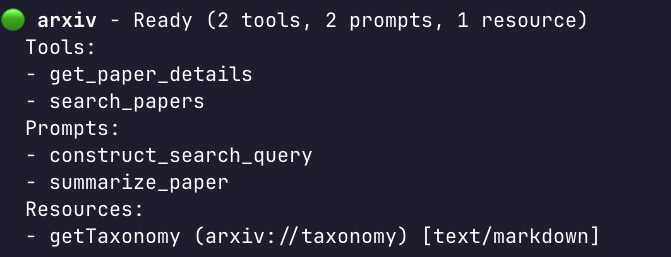
Resource templates are currently not supported by Gemini CLI, so they don’t yet appear, but soon will, hopefully! Stay tuned.
I asked what are the latest 10 papers in artificial intelligence (sorted by publication date)? and you can see that it invoked my arXiv server
and its search_papers tool with the following parameters: {"sortOrder": "descending", "sortBy": "lastUpdatedDate", "query": "cat:cs.AI", "maxResults": 10}.
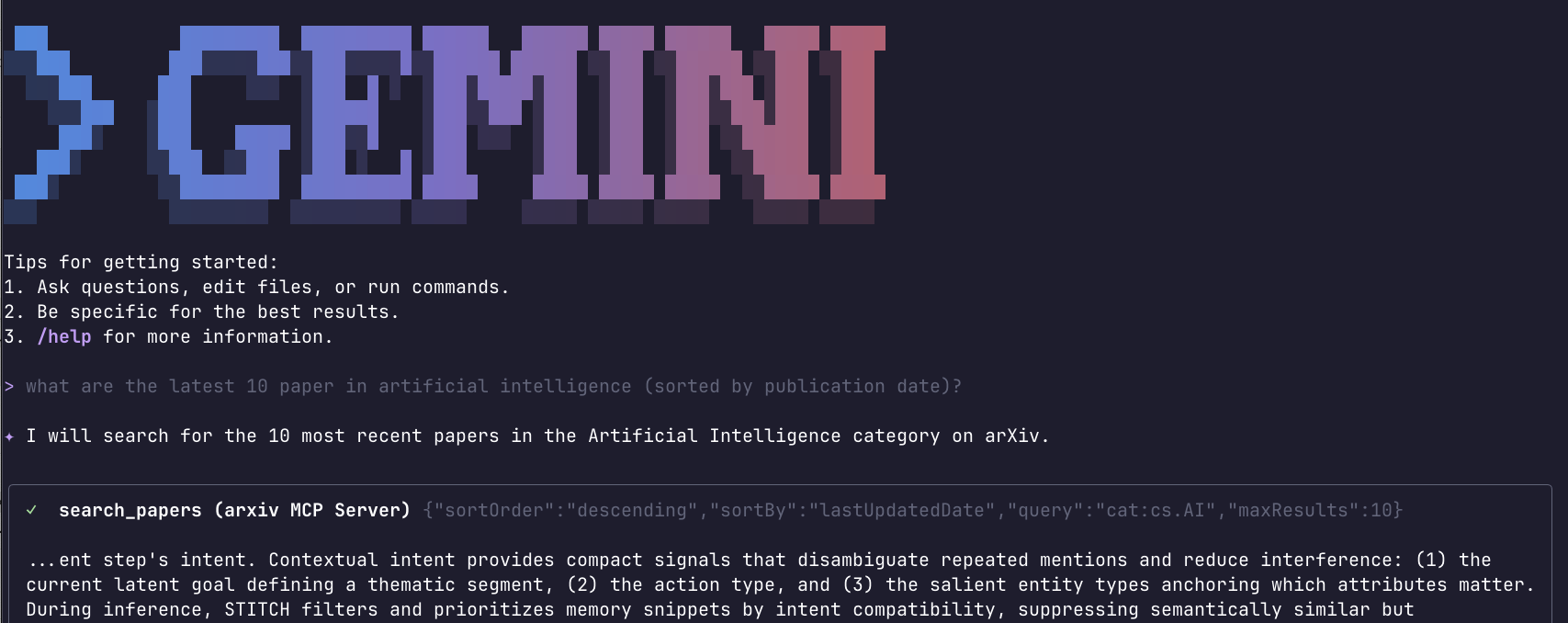
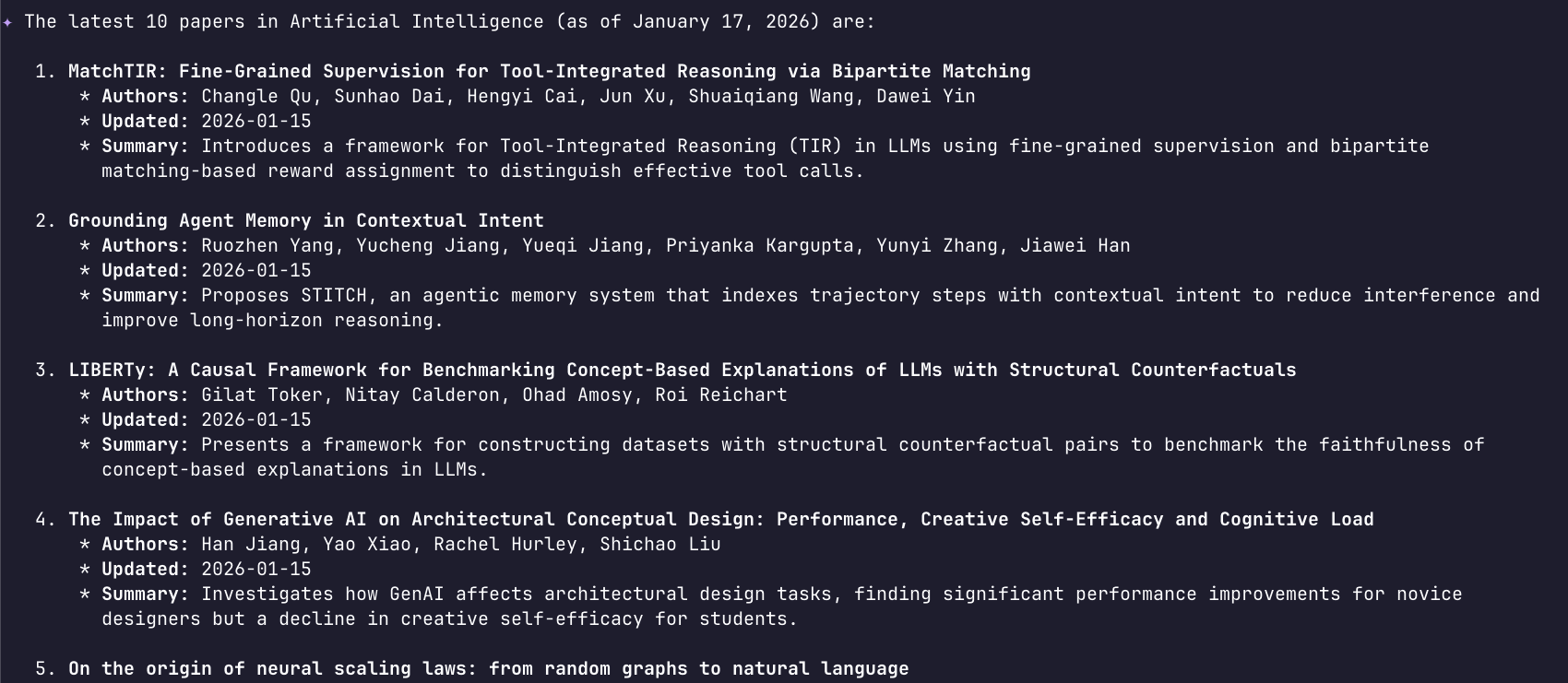
Then Gemini synthesized a human-readable interpretation of those JSON search results:
I asked for more details about #2 and #7 of the list with this query: I'd like to learn more about #2 and #7

And the get_paper_details MCP tool was invoked with the paper IDs ({"ids": ["2601.10702", "2601.10679"]}):
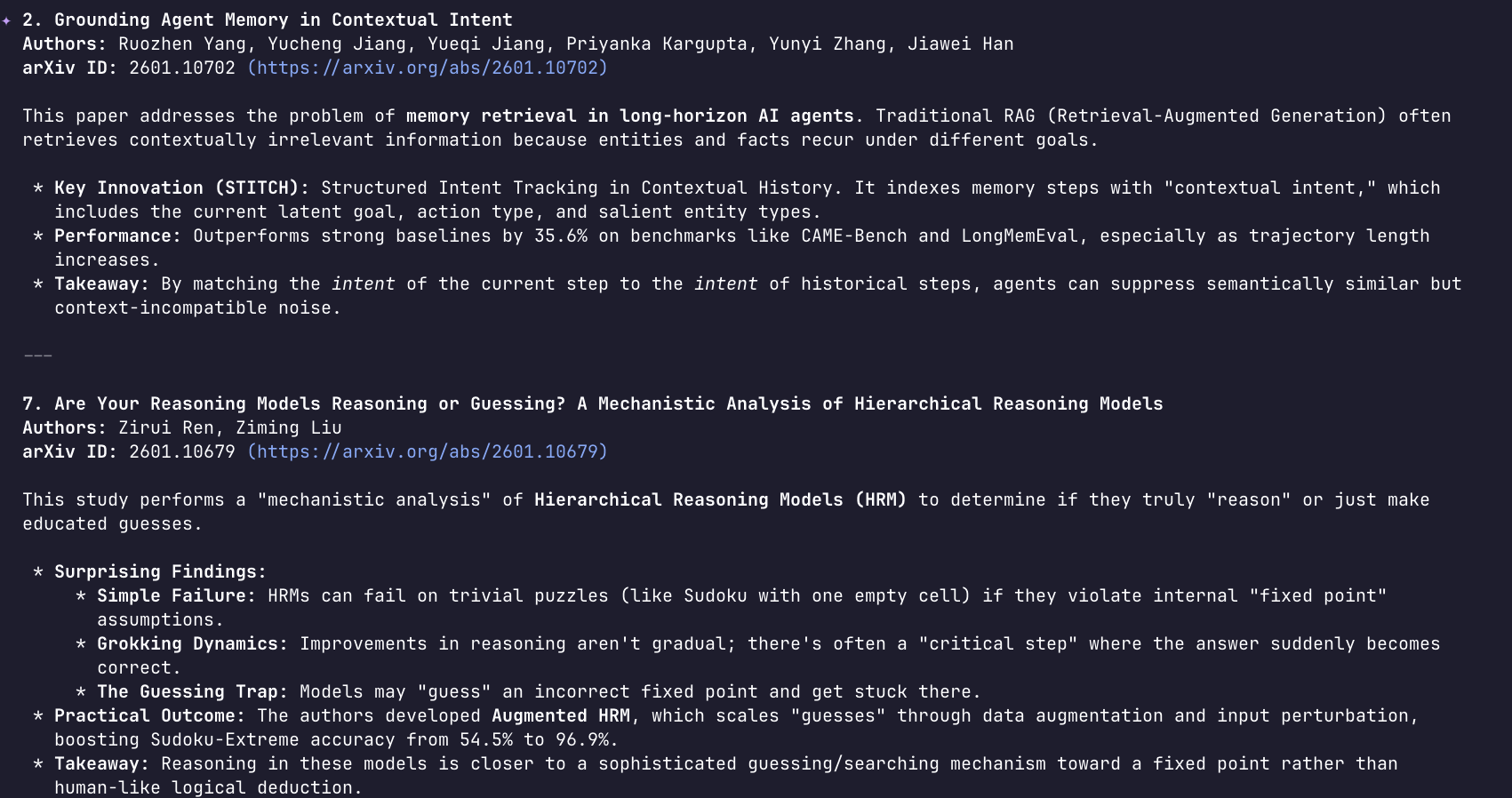
Finally Gemini gave me a bit more context about those two papers:
And voila!
Summary
In this post, we’ve seen how the combination of Quarkus and its MCP extension makes it straightforward to build a feature-complete MCP server in Java. By leveraging annotations, we easily exposed not just tools, but also resources (for taxonomy and metadata) and prompts (to guide the user), providing a rich context for any AI agent.
The development process was also a great example of AI-assisted productivity: using Antigravity to scaffold the project and handle the integration with the arXiv API significantly sped up the implementation. Whether you choose to run your server via STDIO for local use or HTTP for remote access, the Model Context Protocol opens up exciting possibilities for making your data and services “AI-ready.”
Feel free to explore the source code on GitHub and start building your own MCP servers!