
Executable Markdown Files with gcli-mdrun & Gemini CLI
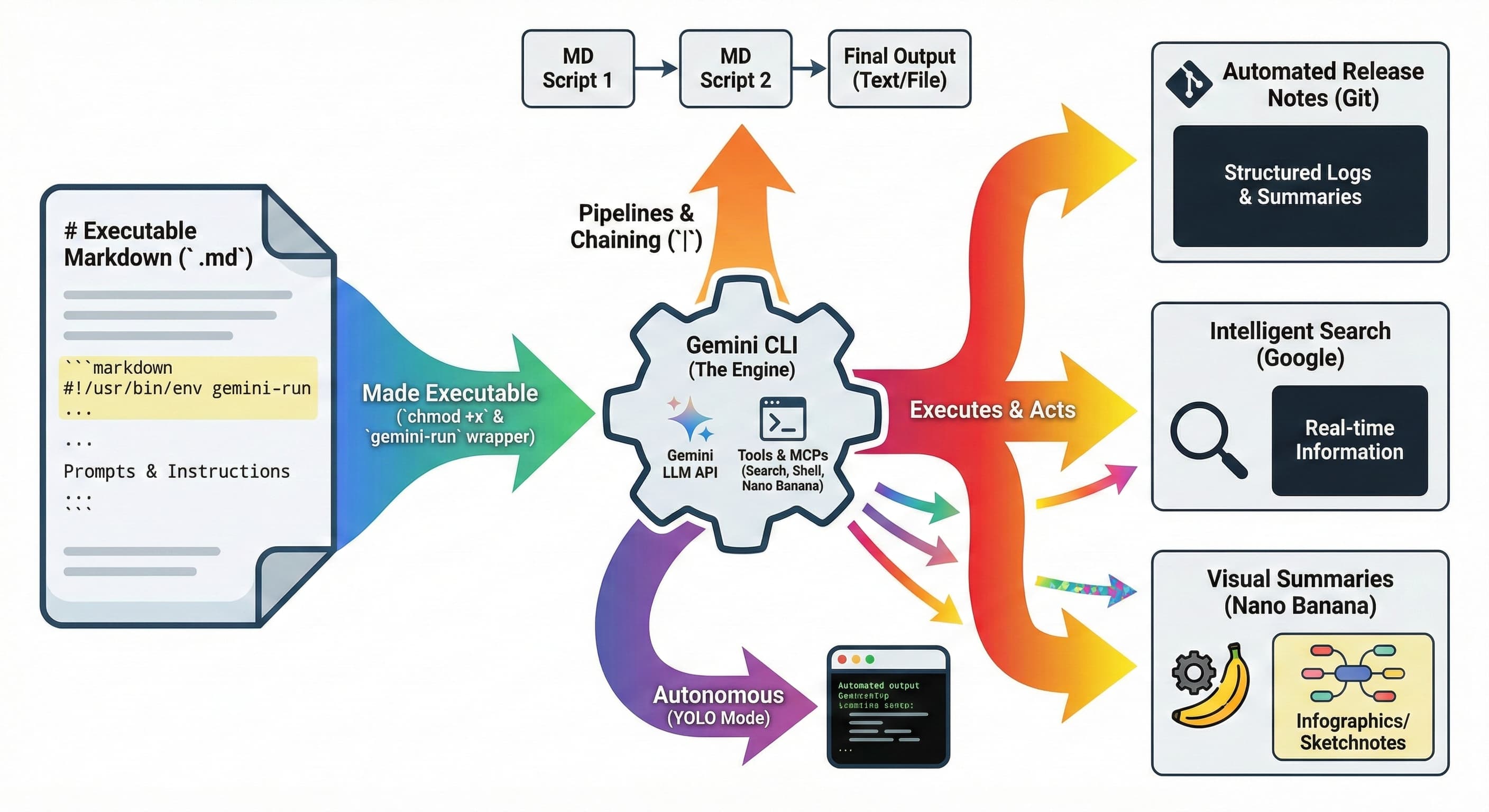
Have you ever wanted to turn your cool LLM prompts & tools, research notes, automation ideas, or even a simple “todo” list into an executable script?
Inspired by a HackerNews post about executable Markdown,
I’m happy to share gcli-mdrun, a smart little script that allows you to transform standard Markdown files
into executable scripts powered by Gemini CLI.
This project allows you to create AI-driven automation, pipelines, and autonomous bots using mere Markdown text files. You can find the project on GitHub at https://github.com/glaforge/gcli-mdrun.
Quick Start
Imagine a file named weather.md:
#!/usr/bin/env gemini-run
Use only the Google Search tool to find the answer to the question below:
What is the weather like in Paris right now?
Run it like any other script:
chmod +x weather.md
./weather.md
And you’d get something like:
I will search for the current weather in Paris.
The current weather in Paris is cloudy with a temperature of 7 °C.
Humidity is at 84%. Wind is blowing from the Southeast at 11 km/h.
There is currently no precipitation.
The prompt (below the shebang line) is actually executed by Gemini CLI.
How to Install
To get started, you need the gemini-run wrapper script from the gcli-mdrun epository.
- Download the script: You can find it in the
scripts/directory of the repo. - Install it: Make it executable and move it to your system path.
chmod +x gemini-run
sudo mv gemini-run /usr/local/bin/
Of course, you’ll have to have Gemini CLI installed,
and a valid Gemini API key configured as a GEMINI_API_KEY environment variable.
Usage & Features
YOLO Mode (Autonomous Execution, aka Live Dangerously)
By using the Gemini CLI --yolo flag in the shebang of your markdown scripts,
Gemini will execute tools and commands automatically without asking for confirmation.
⚠️ Use with caution! ⚠️
#!/usr/bin/env -S gemini-run --yolo
List all files in the current directory and rename any file
with a '.txt' extension to have a '.bak' extension instead.
Piping and Pipelines
Because gemini-run supports stdin, you can chain multiple markdown scripts together or mix them with standard Unix tools.
cat customers.log | ./step1_extract.md | ./step2_analyze.md
And also redirect their outputs to files, with >.
Those familiar with Gemini CLI custom commands might find custom commands more useful in particular for handling inputs or arguments, rather than piping script outputs.
Real-World Examples
Here are some cool things you can do with gcli-mdrun (look at those 3 examples from the repo:
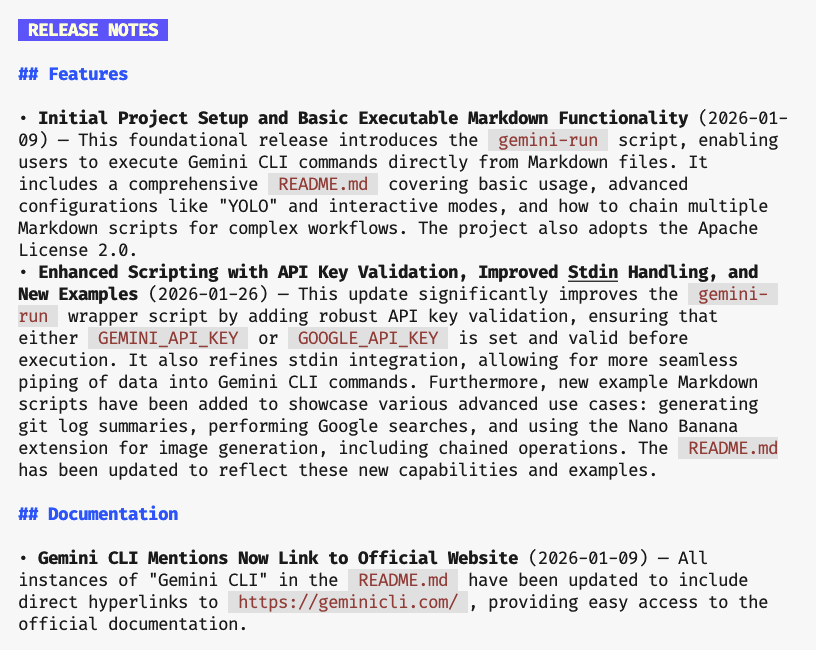
1. Automated Release Notes (git-log-summary.md)
This script analyzes your recent git commits (in the git project in the current folder) a
nd generates structured release notes.
It uses the run_shell_command tool to fetch git logs and diffs (using the git command).
I won’t copy the whole script here as it’s a bit too long, but I’d like just to show you the shebang line:
#!/usr/bin/env -S gemini-run --model gemini-2.5-flash --allowed-tools=run_shell_command(git)
Gemini CLI allows you to specify which tools to allow or forbid, which MCP servers to use or restrict, etc.
Here, I only allowed the execution of the git command via Gemini CLI’s run_shell_command tool.
Be sure to check the documentation of Gemini CLI, and its flags, and ideally avoid giving too many permissions to your executable scripts.
For example, I applied the script to my gcli-mdrun repository and got this (after piping the output to the glow Markdown highlighter):
2. Intelligent Search (google-search.md)
Leverage the power of Google Search directly from your Markdown scripts. This example fetches real-time information from the web, requesting the weather forecast for Paris:
#!/usr/bin/env -S gemini-run --allowed-tools=google_web_search,web_fetch

Use Google Search to find the answer to the question below.
Don't use any other tools.

What is the weather currently Paris?
(be sure to use international units exclusively)
Notice how the tools are restricted with an allow-list.
3. Visual Summaries with Nano Banana (nano-banana.md)
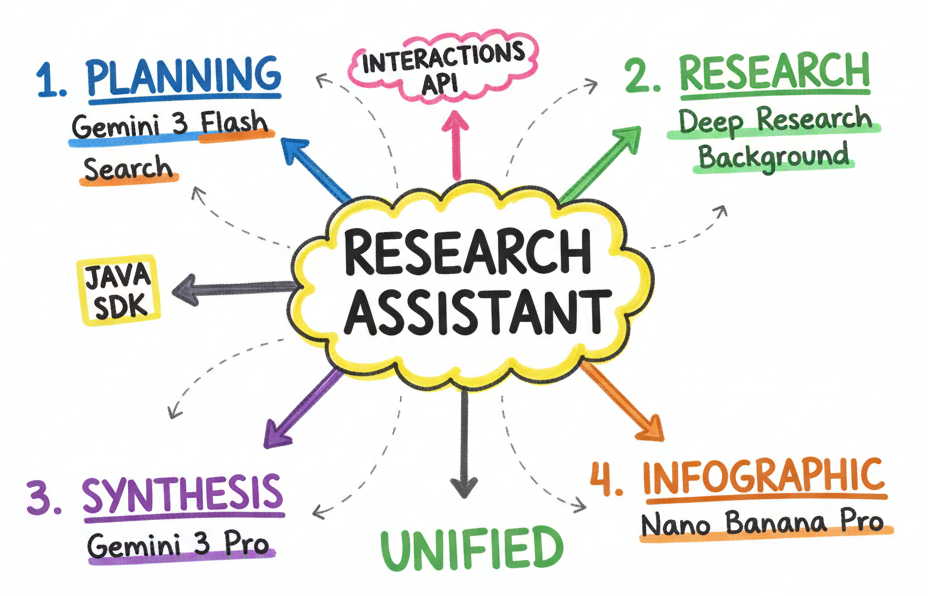
This is where it gets really creative. You can use the nanobanana MCP server
or Nano Banana Gemini CLI extension to generate infographics and mindmaps from articles or search results.
For example, I ran it against one of my recent articles:
#!/usr/bin/env -S gemini-run --allowed-mcp-server-names=nanobanana

* Find the key points of the article at
  https://glaforge.dev/posts/2026/01/03/building-a-research-assistant-with-the-interactions-api-in-java/
* Make a sketchnote mindmap of the article, with pure white background.
  Use highlighters to stress important keywords, and colored thick arrows for each section.
* Display this infographic
And it generated this beautiful sketchnote mindmap:
4. Chaining Search and Graphics (nano-banana-chain.md)
You can even pipe the output of a search script into a graphics script. For instance, getting the weather in Paris from the Google Search script we’ve already seen, and immediately generating a kawaii-style infographic of it by piping the weather output to a 🍌 Nano Banana script…
☁️ And then you can get a super-cute output like this one to illustrate the weather! ☀️

Conclusion
gcli-mdrun is all about making AI more accessible and integrable into your existing workflows.
By treating Markdown as code, we can bridge the gap between human-readable documentation and machine-executable tasks,
thanks to Gemini CLI and a little bit of glue shell script.
Check out the project on GitHub and tell me what cool and handy executable Markdown scripts you’ll create!