
Customizing Antigravity CLI: Title and Status Line
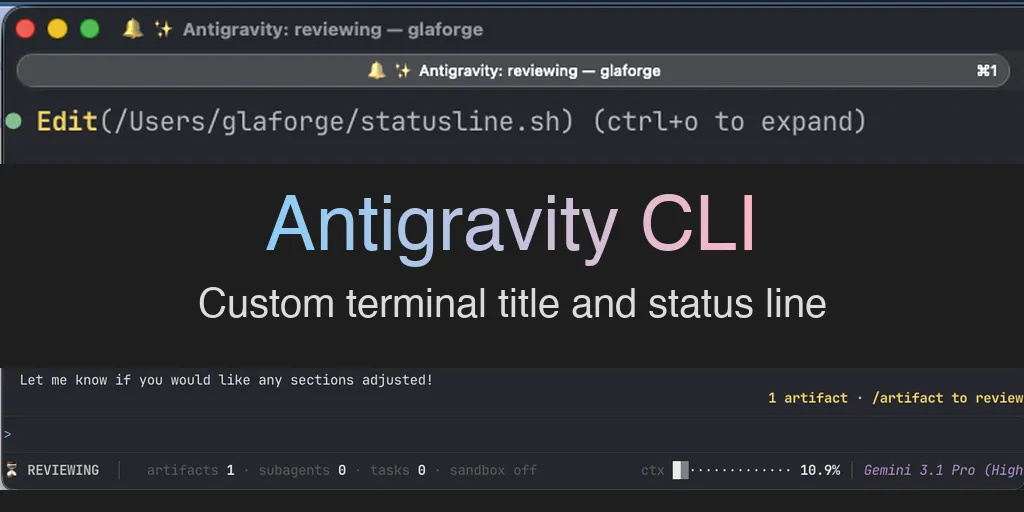
Antigravity CLI allows you to customize both the terminal window title and the bottom status line. This is done by passing a JSON payload of the current agent state to external shell scripts via standard input.
In this post, I will explain how I set up my environment, the specific scripts I use, and how to configure the CLI to load them.
The Principle
Both the title and the status line operate on the same principle:
- The CLI executes a script specified in your configuration.
- It pipes a JSON payload containing telemetry (agent state, context usage, active artifacts, terminal width, etc.) to the script’s
stdin. - The script parses the JSON (using
jq) and outputs a formatted string. - The CLI reads the output and updates the UI.
To learn more, you can reference the official documentation for the Title and the Status Line.
Customizing the Terminal Title
I started with the example title script provided on Antigravity CLI’s GitHub repository.
The goal for the title was to keep it minimal, showing:
- the current agent state with a mapped emoji,
- and the active workspace directory.
Here is the script I ended up with:
#!/bin/bash
set -euo pipefail

# Read JSON payload from stdin
DATA=$(cat)

eval $(echo "$DATA" | jq -r '
  "STATE=\"\(.agent_state // "idle")\"
   CWD=\"\(.workspace.current_dir // "")\"
  "
' 2>/dev/null || echo 'STATE="idle" CWD=""')

if [ -n "$CWD" ]; then
  WORKSPACE=$(basename "$CWD")
else
  WORKSPACE="unknown"
fi

# Add an emoji based on the current state
case "$STATE" in
  idle) EMOJI="☕" ;;
  thinking|running|working) EMOJI="🧠" ;;
  error|failed) EMOJI="❌" ;;
  tool*|calling*) EMOJI="🛠️" ;;
  waiting) EMOJI="⏳" ;;
  *) EMOJI="✨" ;;
esac

# Output the title string
echo "$EMOJI Antigravity: $STATE — $WORKSPACE"
Do not output ANSI escape sequences for the window title. The CLI handles the window title injection itself. Outputting raw ANSI codes here will result in literal escape characters appearing in your title bar.
Here is what the terminal looks like in the standard idle state with the custom title:

Customizing the Status Line
Next, I configured the status line using the example statusline script (again provided on Antigravity CLI’s GitHub repository).
Unlike the title, the status line supports ANSI color codes. The example script extracts a broader set of data, including git branch status, artifact counts, and terminal width (COLS), and formats them in a responsive manner (when you resize your terminal window).
I made two distinct modifications to the default example:
- True Color Overrides: My specific terminal theme caused the standard 16-color green to look yellowish. I replaced the standard green with a 24-bit true color RGB sequence to force a specific shade of green for the “READY” state.
FG_TRUE_GREEN="\033[38;2;46;204;113m" # ... idle) S="${FG_TRUE_GREEN}${B}● READY${R}" ;; - Right-Aligned Context Usage: By default, the context window usage bar is on the left. I updated the bash output logic to right-justify both the context usage progress bar and the model name against the right edge of the terminal. This required stripping the ANSI codes from the string to calculate the visible string length, and generating the required space padding based on the
.terminal_widthvalue provided by the CLI payload.
Here is how the status line dynamically updates when an artifact review is required:

Configuration and Activation
To instruct Antigravity CLI to use these scripts, you must modify its settings.json file. This file is located in the CLI’s app data directory (typically ~/.gemini/antigravity-cli/settings.json).
Add the following blocks to the root of the JSON file:
{
  "title": {
    "command": "/path/to/your/title.sh",
    "enabled": true
  },
  "statusLine": {
    "command": "/path/to/your/statusline.sh",
    "enabled": true
  }
}
The status line key is statusLine (camelCase).
Using statusline will result in the configuration being ignored.
Once the file is saved, you can activate the changes directly within a running CLI session by using the slash commands:
/title on/statusline on
If the UI does not update, the CLI may have an older configuration state in memory. Exit the CLI entirely and restart it to force a read of the updated settings.json file.
Summary
In this post, we explored how to customize the look of the terminal title and the Antigravity CLI status line by creating a custom title and a responsive, color-matched status line.
The fun part? I actually used Antigravity CLI itself to help me write the bash scripts, debug the JSON payloads, and apply the configurations. It was a very “Inception”-style workflow: using Antigravity CLI to customize Antigravity CLI! 😃
If you want to tailor your own terminal environment to fit your aesthetic and workflow, I encourage you to read through the official documentation for customizing the Title and the Status Line of Antigravity CLI.
Don’t have the CLI yet? Head over to the Antigravity CLI website to download it, connect it to your favorite models, and try it out for yourself. Happy customizing! 😃