
Antigravity Brain Visualizer Now With a Contextual Smart Chat
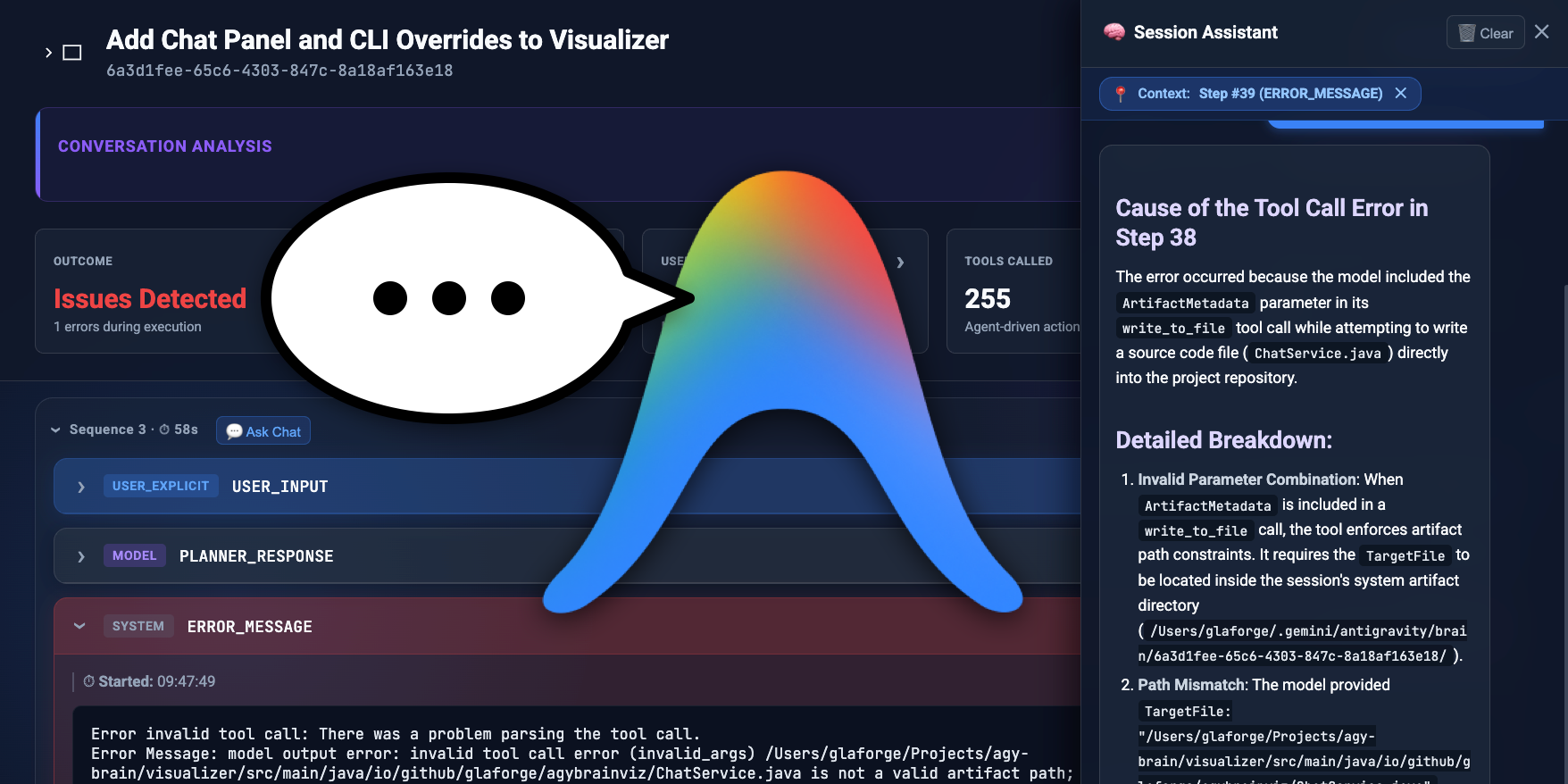
A few weeks ago, I wrote about building the Antigravity Brain Visualizer: a tool to parse raw JSONL transcript logs from Antigravity AI agent sessions and render them into an interactive web interface with proportional timelines and sequence groupings.
While visual timeline scrubbing and sequence filtering made it easier to inspect what an agent did, diagnosing complex tool failures or creating preventative guardrails still required manual investigation:
- Why did a tool call fail at step #38?
- What sequence of events led up to a specific error?
- Could I automatically turn a failure pattern into an Agent Skill to prevent Antigravity from repeating the mistake?
To address these questions directly within the application, I built the Interactive Session Assistant in v0.4.1 of the Antigravity Brain Visualizer. It transforms the visualizer from a passive log viewer into an interactive diagnostic co-pilot.
You can view the source code and download the latest native binary release directly from the GitHub repository.
Here is a practical breakdown of how the chat assistant works and how I implemented it.
The Interactive Chat Drawer
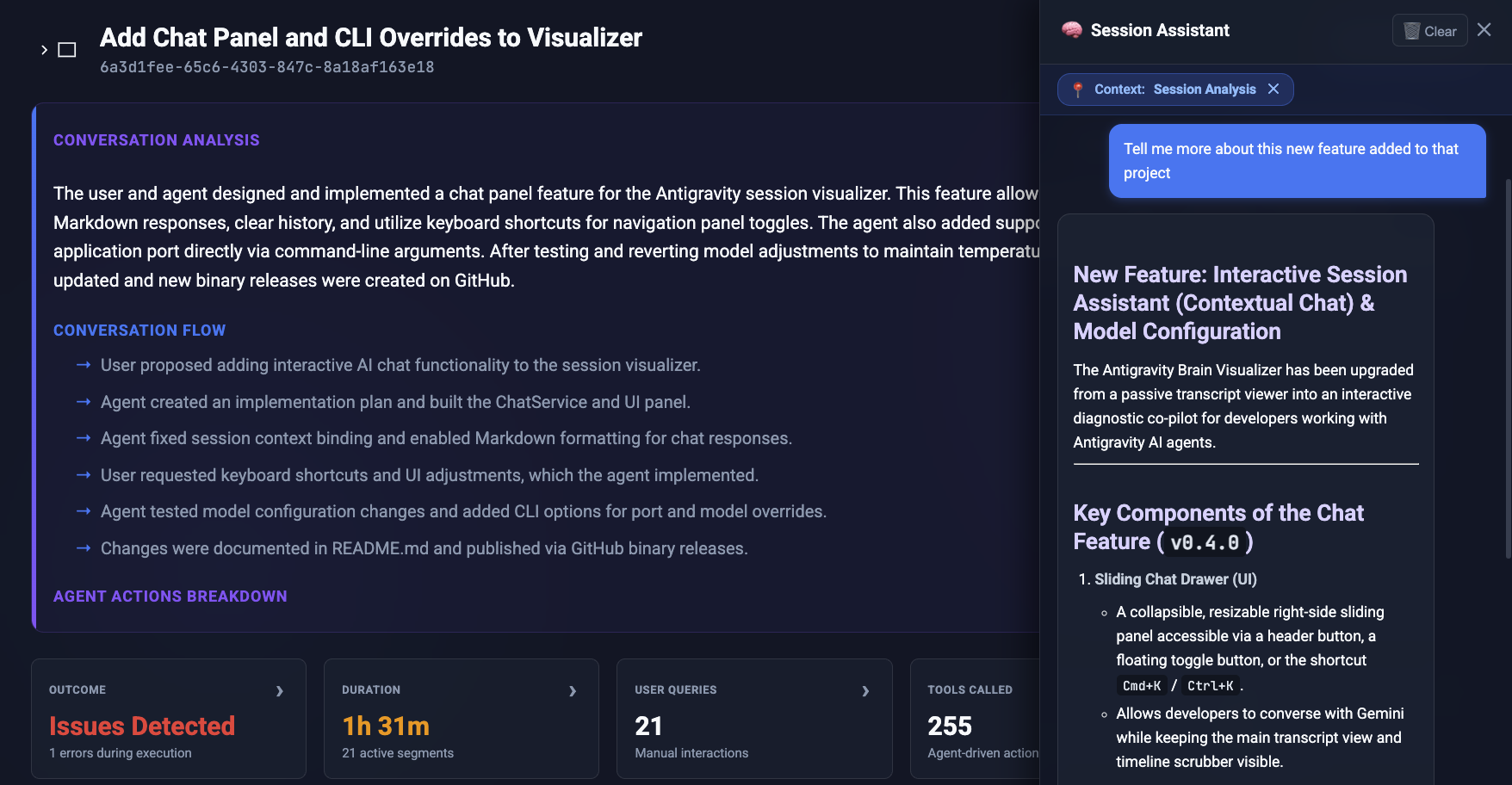
Rather than crowding the main transcript view or navigating to a separate tab, I added a sliding right drawer that opens alongside the transcript scrubber.
Key UI Features
- Side-by-Side Diagnostics: The panel slides in from the right (
Cmd+K/Ctrl+K), keeping the visual timeline, sequence toggles, and step cards visible while chatting. - Markdown & Code Syntax Highlighting: Assistant responses render Markdown lists, headers, inline code, and syntax-highlighted code blocks (
hljs). - Form Controls: A query text input, a send button to send the instruction, and a
Clearbutton to reset chat history. - Keyboard Shortcuts:
Cmd+K/Ctrl+K: Toggle Session Assistant chat panel.Cmd+B/Ctrl+B: Toggle left session sidebar.Cmd+Shift+A/Ctrl+Shift+A: Collapse or expand Conversation Analysis.
Contextual Scoping (“Chat Bubbles Everywhere”)
Passing an entire 100-step raw transcript into an LLM wastes context tokens and often yields generic answers. To keep responses precise, I introduced contextual chat triggers across key UI components.
1. Discussing Session Summaries
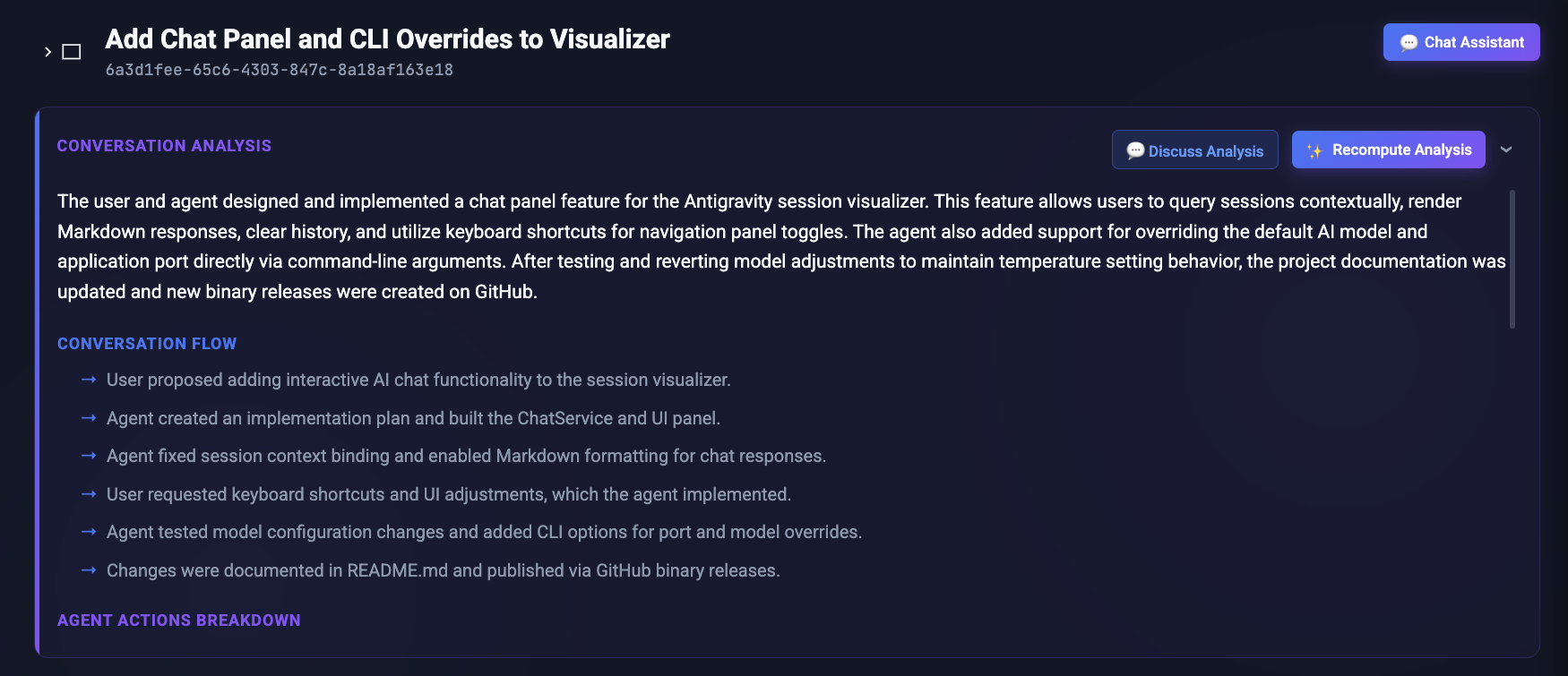
When a session loads, Gemini Flash generates an executive summary. Clicking Discuss Analysis in the summary header opens the chat drawer scoped specifically to the summary (📍 Context: Session Analysis).
2. Querying Execution Sequences
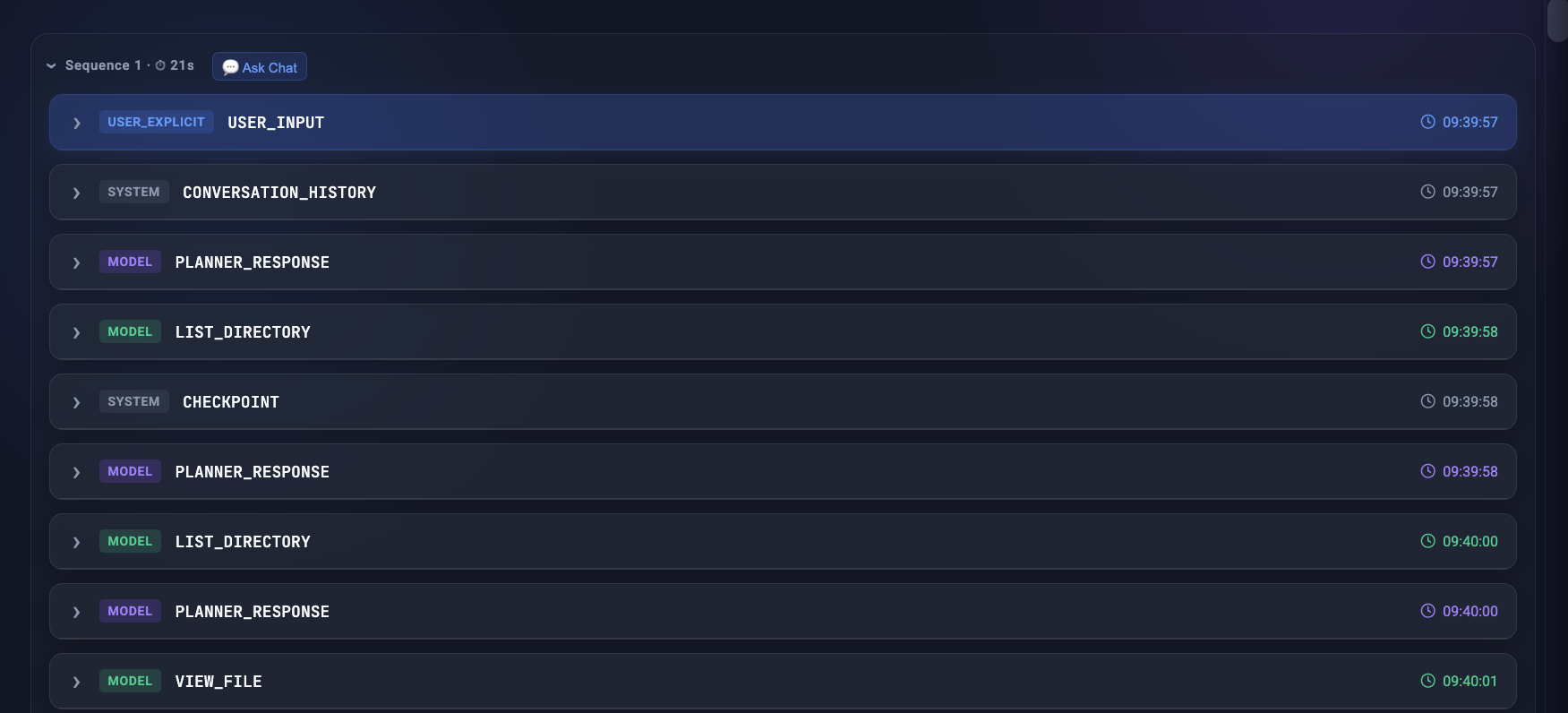
To investigate a multi-step sequence, clicking Ask Chat on any sequence header pins the conversation context to that sequence (📍 Context: Sequence #1).
3. Diagnosing Step Failures
When an agent step results in a tool error, an Ask Chat button appears directly on the error step card.
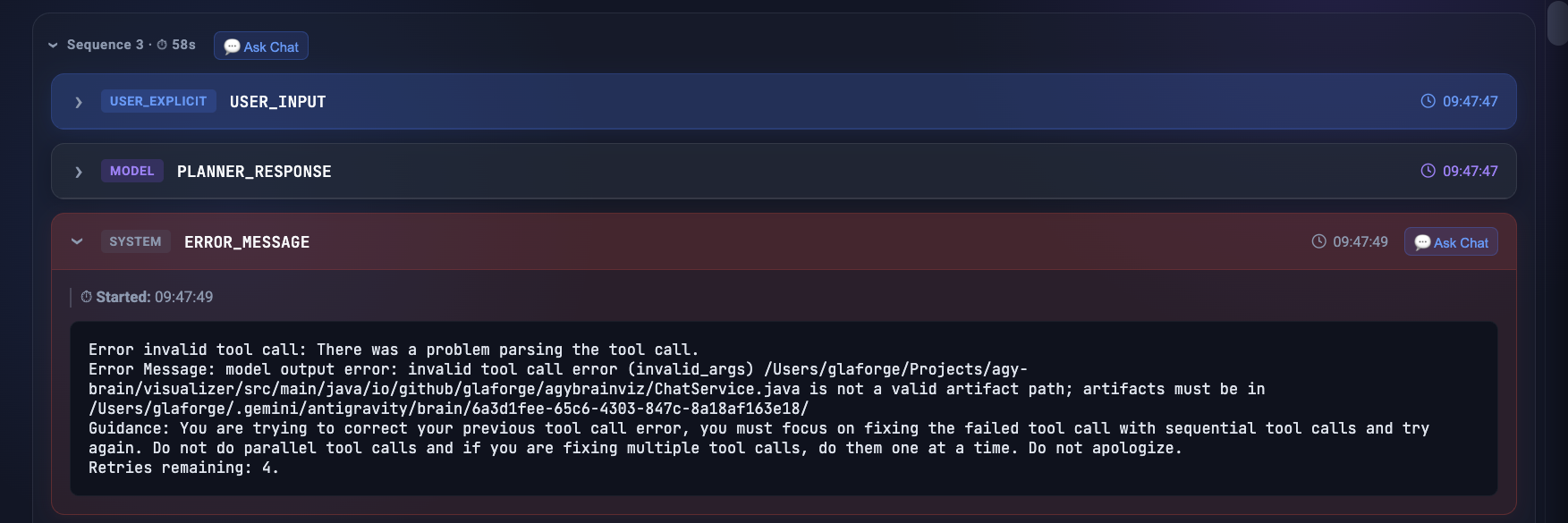
Clicking it slices the JSONL log around the failure and opens the chat panel with 📍 Context: Step #39 (ERROR_MESSAGE).
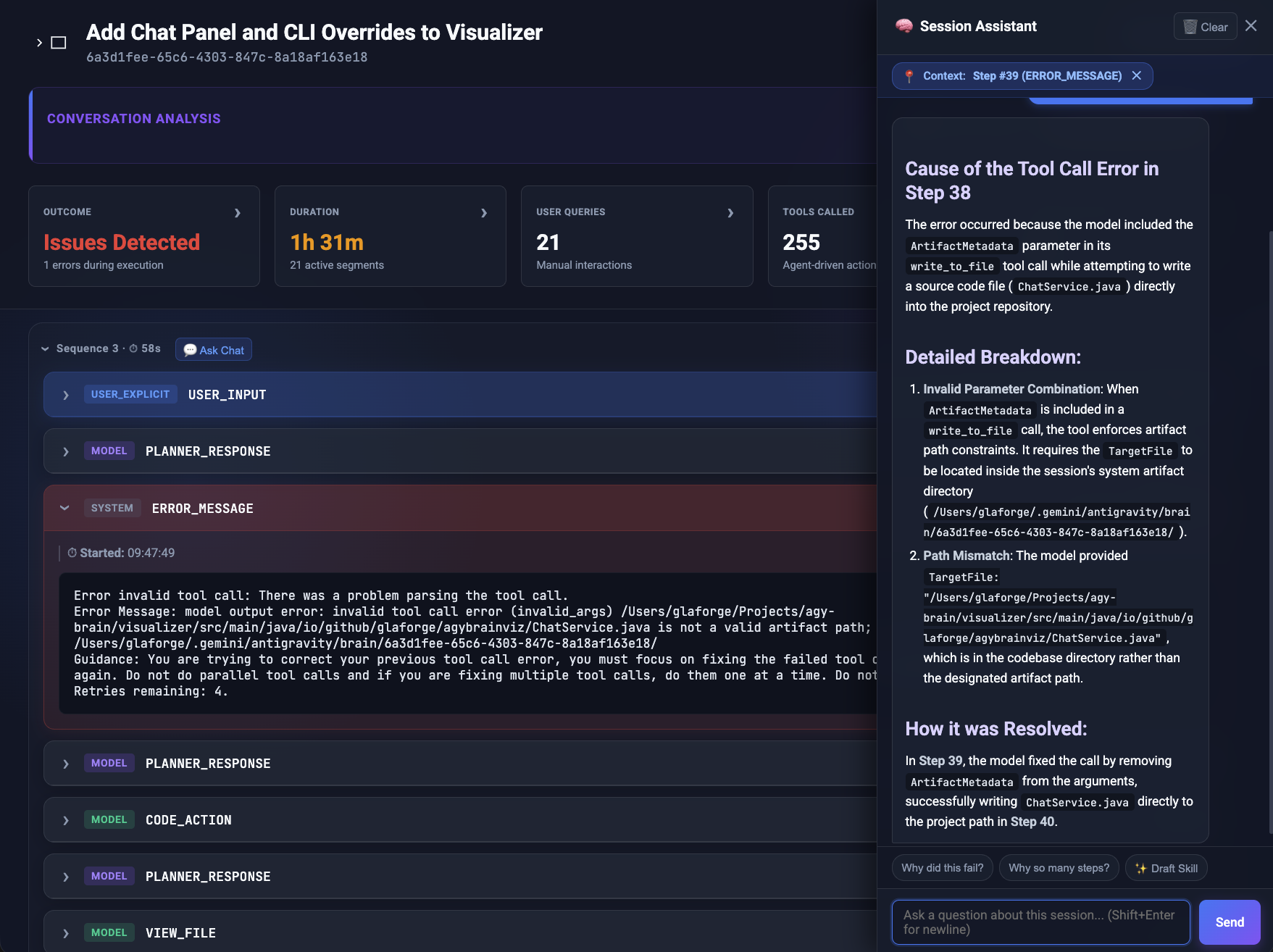
As shown above, the assistant analyzes the exact error details, identifies parameter and path mismatches, and points out how the agent corrected the issue in subsequent steps.
Automated Guardrails: Drafting Agent Skills
When I spot a recurring failure pattern, I can ask the assistant to generate an agent skill:
“Could we create a skill to prevent Antigravity from falling into this trap?”
The assistant drafts a skill template adhering strictly to the Agent Skills Specification (agentskills.io):
---
name: fix-artifact-path-handling
description: Prevent invalid tool call errors when passing TargetFile paths to write_to_file or replace_file_content. Trigger on artifact path errors or file creation steps.
allowed-tools:
  - write_to_file
  - replace_file_content
---

# Fix Artifact Path Handling

## Overview
Ensure all artifact file writes use absolute paths located within the active session's designated artifact directory.

## Instructions
1. Inspect the target filepath before calling `write_to_file`.
2. Do not pass `ArtifactMetadata` when writing source code directly to project repository files.
Each generated skill block includes a 📋 Copy Skill Template button so I can quickly copy the template into my project’s .gemini/skills directory.
Not every problem can be solved by adding yet another skill, but in some cases, these skill templates can help better frame your Antigravity sessions and avoid recurring traps.
That was also why I created the Open Reasoning Format, to avoid repetitive traps agents fall into.
Behind the Scenes: Micronaut, LangChain4j & Configuration
The backend is still built with Micronaut and LangChain4j using @AiService declarations to interface with Google Gemini.
Model & Port Customization
I also added options to override the default Gemini model (gemini-3.5-flash, but you can try 3.6 if you want)
and application port via environment variables, System Properties, or command-line flags:
| Setting | Environment Variable | System Property / Flag | Default Value |
|---|---|---|---|
| API Key | GEMINI_API_KEY | -Dgemini.api.key | Required |
| Server Port | MICRONAUT_SERVER_PORT | -Dmicronaut.server.port / --micronaut.server.port | 8080 |
| Gemini Model | GEMINI_MODEL | -Dgemini.model / --gemini.model | gemini-3.5-flash |
Environment Variables
export GEMINI_API_KEY="your-api-key-here"
export GEMINI_MODEL="gemini-3.6-flash"
export MICRONAUT_SERVER_PORT=9090

./gradlew run
Native Binary & CLI Flags
./agy-brain-viz --micronaut.server.port=9090 --gemini.model=gemini-3.6-flash
Going Forward
The visualizer now gives you an interactive assistant right alongside your session logs to help analyze and debug tricky agent runs. When a trajectory goes off track or encounters errors, you can ask Gemini to explain what happened, break down complex tool sequences, or draft a new Agent Skill to prevent the same issue in future runs.
Give the updated release a try on your session transcripts, and feel free to reach out on social media or GitHub if you have feedback or ideas for new features!
Source & Download
You can find the updated visualizer in the v0.4.0 and v0.4.1 releases.
- GitHub Release: v0.4.1 Release Assets
- Source Code: GitHub Repository